Download and Install OpenJDK 21 on Windows
- Details
- Written by Nam Ha Minh
- Last Updated on 02 December 2023 | Print Email
1. Download binary distribution of OpenJDK 21
You should download the binary distribution of OpenJDK from a trusted source, i.e. JDK 21’s official download page. The following page will appear: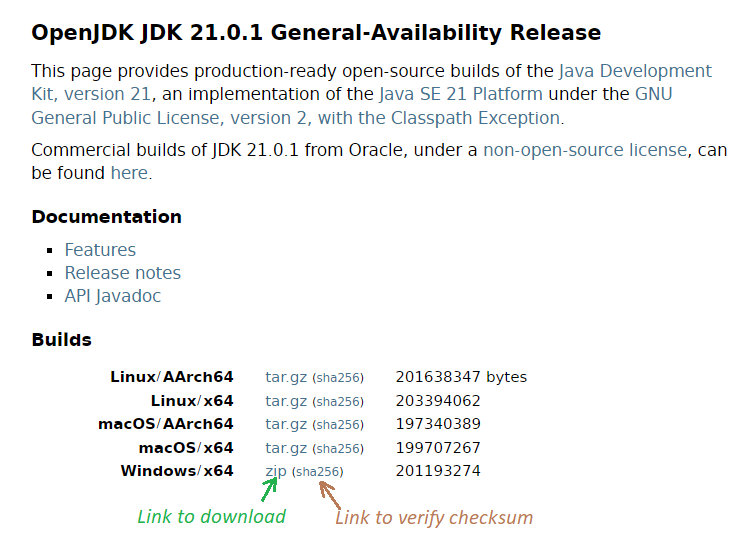 You see, OpenJDK 21 is distributed as zip archive for Windows - no installer or setup program. That means you must download and install it manually.So click the hyperlink “zip” next to Windows/x64 as shown in the above screenshot. It will download the zip file openjdk-20.0.1_windows-x64_bin.zip on to your computer.Next, it’s strongly recommended to verify integrity of the downloaded archive by checking its SHA256 checksum. Open a new Command Prompt window at the directory that contains the file, and type the following command:
certutil -hashfile openjdk-21.0.1_windows-x64_bin.zip sha256
2. Install OpenJDK 21 on Windows
You can extract the downloaded zip file using Windows Explorer or the following command in Command Prompt window:tar -xf openjdk-21.0.1_windows-x64_bin.zip
It will unzip the file to a new directory named jdk-21.0.1 which contains the binary files of OpenJDK 21.Then you need to set the system environment variables JAVA_HOME and PATH in the following manner: JAVA_HOME = [Path to OpenJDK directory] PATH = JAVA_HOME\bin + PATHFor detailed instruction about setting up JAVA_HOME environment variable, check this article.And to verify the installation of OpenJDK, open a new command prompt window and type java -version to and javac -version as shown below: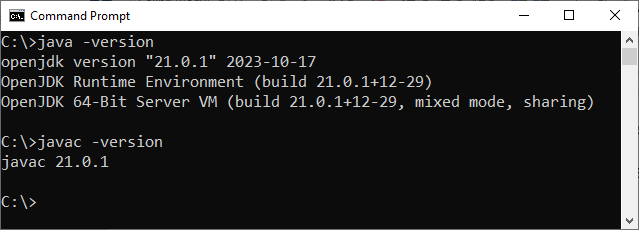 If it prints openjdk version “21.0.1” and “javac 21.0.1” - that means you have installed OpenJDK 21 on Windows operating system successfully. You now can begin developing and running applications on Java virtual machine. Watch the following video to see how to download and install OpenJDK 21 on Windows in action:
 Learn more:
- How to check Java version
- Java SE versions history
- How to set JAVA_HOME environment variable on Windows 10
- How to set environment variables for Java using command line
- How to write, compile and run a hello world Java program for beginners
- What are JVM, JRE and JDK
About the Author:
 Nam Ha Minh is certified Java programmer (SCJP and SCWCD). He began programming with Java back in the days of Java 1.4 and has been passionate about it ever since. You can connect with him on Facebook and watch his Java videos on YouTube.