Download and Install OpenJDK 25 on Windows
- Details
- Written by Nam Ha Minh
- Last Updated on 19 October 2026 | Print Email
Java 25 was released on September 16, 2025, and is a Long-Term Support (LTS) release of the Java SE platform. Having worked with Java for many years, I generally prefer LTS releases for development projects that require long-term stability and maintenance.If you're setting up a Java development environment on Windows, OpenJDK 25 is an excellent choice. Let's get started.
1. Download Binary Distribution of OpenJDK 25 for Windows
Since Java 25 is no longer the latest feature release, head over to the OpenJDK Archive download page, where you can find previously released versions of Java:Look for the Java 25 release and locate the Windows 64-bit binary distribution, as shown in the following screenshot:
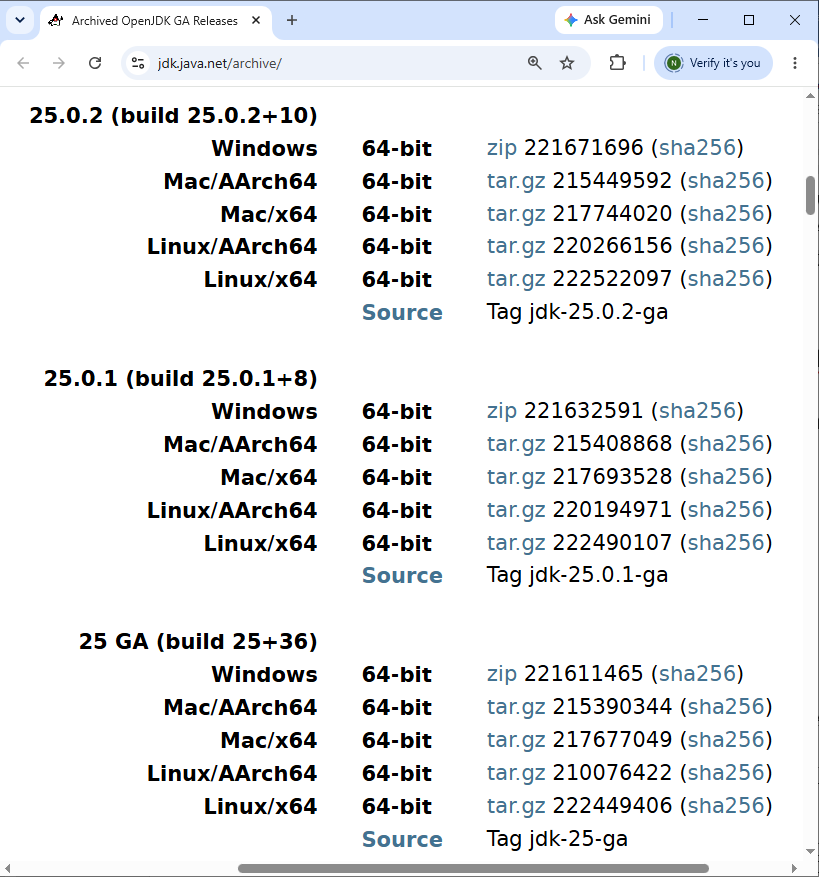
Unlike some commercial JDK distributions, the official OpenJDK builds available on this website do not come with a Windows installer. Instead, they are provided as compressed ZIP archives that you can extract and configure manually.Click the Windows 64-bit ZIP download link to get the binary distribution of OpenJDK 25. The downloaded file should have a name similar to:
openjdk-25.0.2_windows-x64_bin.zipDepending on the update release you select, the filename may include additional version information, such as 25.0.2.Save the ZIP file in the Downloads folder under your Windows user directory.
2. Verify the Downloaded ZIP File
cd Downloads
Next, execute this command:certutil -hashfile openjdk-25.0.2_windows-x64_bin.zip SHA256
Make sure you replace the filename with the actual name of the ZIP file you downloaded.The command calculates and displays the SHA-256 checksum of the specified file.Compare the displayed checksum with the one published on the official OpenJDK download page.If both values are identical, the integrity check has passed, and you can proceed with the installation.
3. Install OpenJDK 25 on Windows
Now, let's install OpenJDK 25 by extracting the downloaded ZIP archive into a directory of your choice.Personally, I prefer keeping different JDK versions in a dedicated directory, rather than mixing them with other installed programs. This makes it easier to manage multiple Java versions on the same computer.For this tutorial, I'll use the following directory: D:\OpenJDKYou can extract the ZIP file using Windows File Explorer, WinRAR, 7-Zip, or simply the following command in Command Prompt.First, create the destination directory if it doesn't already exist: mkdir D:\OpenJDKThen, run this command from the directory containing the downloaded ZIP file:tar -xf openjdk-25.0.2_windows-x64_bin.zip -C D:\OpenJDK
The command extracts the contents of the ZIP archive into the specified directory.For the last Java 25 release, the JDK home directory should be: D:\OpenJDK\jdk-25.0.2Next, we need to configure the Windows environment variables so that Java commands can be executed from any directory in Command Prompt.Click the Start button, type environment variables, and select Edit the system environment variables from the search results.In the System Properties window, click the Environment Variables button.Under the System variables section, click New to create a new environment variable with the following values:- Variable name: JAVA_HOME
- Variable value: D:\OpenJDK\jdk-25.0.2
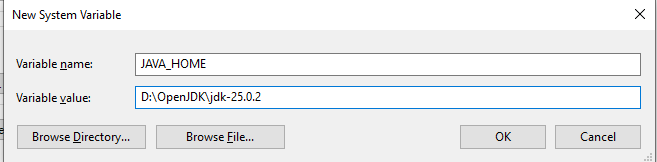
Make sure the variable value points to the actual JDK installation directory on your computer.Next, find the Path variable under System variables, select it, and click Edit.Add the following entry near the top of the list: %JAVA_HOME%\bin
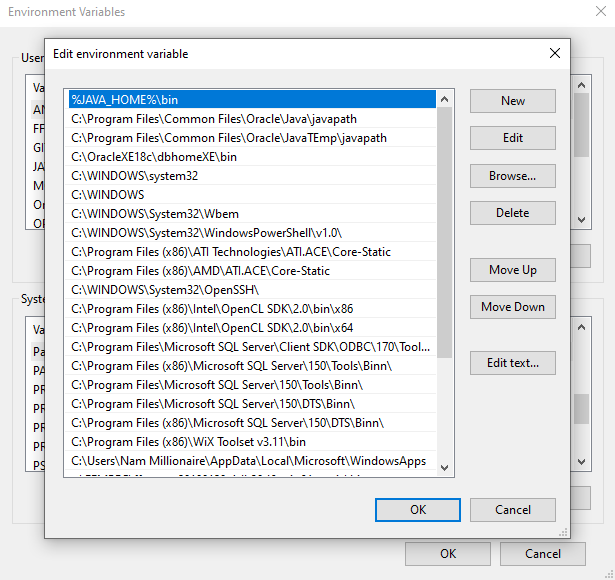
If you have other Java versions installed, make sure this entry takes precedence over their executable directories if you want OpenJDK 25 to be the default Java version.These settings allow Windows to locate Java commands such as java and javac. The JAVA_HOME variable is also commonly used by Java development tools, including Maven, Gradle, and application servers.Click OK to save the changes and close all the dialogs.
For a more detailed explanation, refer to my guide on How to Set JAVA_HOME Environment Variable on Windows.
4. Verify the OpenJDK 25 Setup on Windows
Finally, let's verify that OpenJDK 25 has been installed and configured correctly.Open a new Command Prompt window so that Windows can load the updated environment variables.Then, type the following command: java -versionYou should see output similar to this: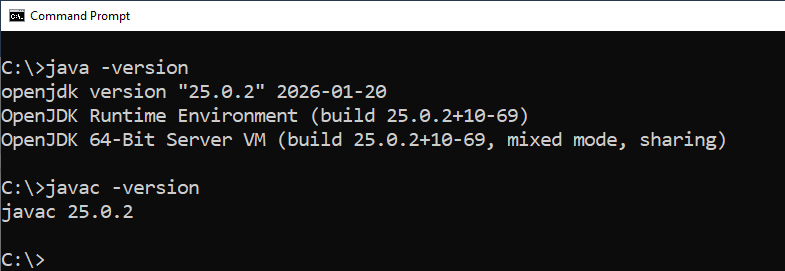
The exact build information may differ depending on the OpenJDK 25 update release you installed.Next, check the Java compiler version by running: javac -versionThe output should be similar to:
javac 25
You can also verify the JAVA_HOME environment variable using this command:echo %JAVA_HOME%
It should display the path to your OpenJDK 25 installation directory.If the commands work as expected, congratulations! You have successfully installed OpenJDK 25 on your Windows computer.If Windows reports that java or javac is not recognized, double-check the JAVA_HOME and PATH environment variables. If an older Java version appears, run where java to identify which Java executable Windows is using.From my experience, incorrect environment variable settings are among the most common issues developers encounter when installing Java, especially when multiple JDK versions are installed.Now you're ready to start writing, compiling, and running Java applications using OpenJDK 25. Happy coding!
Related Articles:
- How to set JAVA_HOME in macOS and Linux permanently
- How to set JAVA_HOME environment variable on Windows 10
- What are JVM, JRE and JDK
- How to write, compile and run a hello world Java program for beginners
- Java Core Language Tutorials
About the Author:
 Nam Ha Minh is certified Java programmer (SCJP and SCWCD). He began programming with Java back in the days of Java 1.4 and has been passionate about it ever since. You can connect with him on Facebook and watch his Java videos on YouTube.
Comments