Download and Install Oracle JDK 25 on macOS
- Details
- Written by Nam Ha Minh
- Last Updated on 22 October 2026 | Print Email
1. Download Oracle JDK 25 Installer for macOS
First, I recommend downloading the JDK installer directly from Oracle's official website to ensure you're getting an authentic copy of the software.Visit the official Java Downloads page, locate JDK 25 and select the macOS tab to see the available download packages.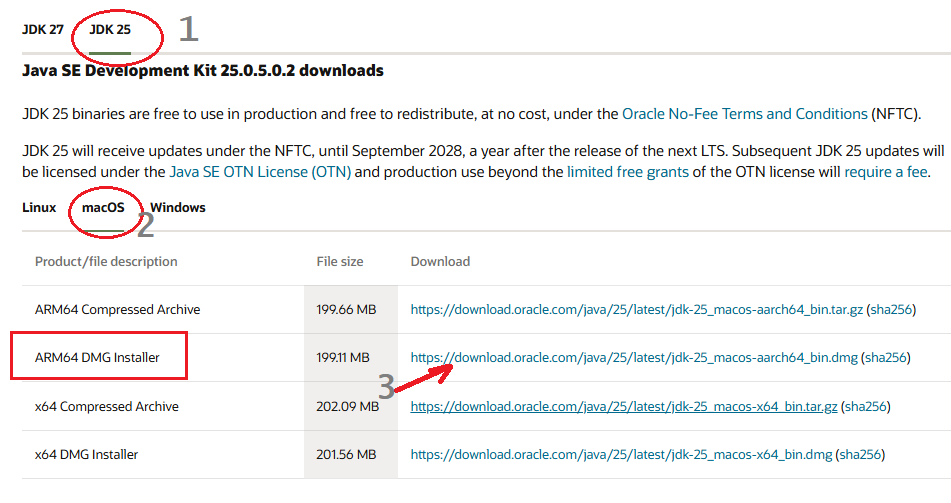
As you can see, Oracle provides different installation packages for macOS, including compressed archives and DMG installers.For convenience, I recommend downloading the DMG installer. You need to choose the correct one based on your Mac's processor:
- ARM64 DMG Installer: Choose this if your Mac uses an Apple Silicon processor, such as M1, M2, M3, M4, or a newer Apple chip.
- x64 DMG Installer: Choose this if your Mac is powered by an Intel processor.
2. Verify the Oracle JDK 25 Installer File
Before installing the JDK, I recommend checking the integrity of the downloaded file. Although this step is optional, it's a good practice to make sure the installer hasn't been corrupted or modified.Oracle publishes a SHA256 checksum for each downloadable package, which you can use to verify the file.Open a new Terminal window and navigate to the directory where the installer was downloaded. For example:cd ~/Downloads
Next, run the following command if you've downloaded the ARM64 installer:shasum -a 256 jdk-25_macos-aarch64_bin.dmg
For an Intel-based Mac, use:shasum -a 256 jdk-25_macos-x64_bin.dmg
Note that the actual filename may differ depending on the JDK 25 update release you've downloaded. Replace the filename in the command accordingly.The command prints a long hexadecimal string representing the SHA256 checksum of the downloaded file.Now, return to Oracle's Java Downloads page and click the SHA256 link associated with the installer you downloaded.Compare the published checksum with the value printed in Terminal.If both values match, the downloaded file has passed the integrity check, and you can proceed with the installation.Otherwise, I recommend downloading the installer again from Oracle's official website.3. Install Oracle JDK 25 on macOS
Now that you've downloaded and verified the installer, it's time to install Oracle JDK 25 on your Mac.Double-click the downloaded DMG file to open it. macOS will mount the disk image, which contains an installation package named something like JDK 25.pkg.Double-click the PKG file to launch the Oracle JDK installation wizard.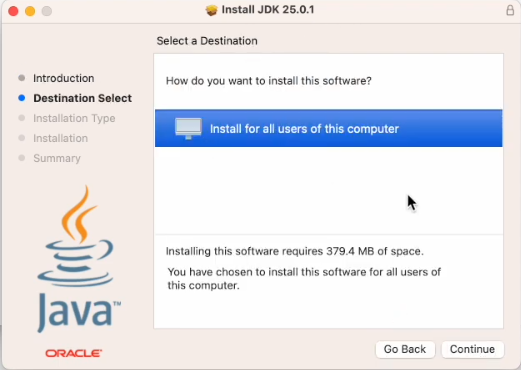
Click Continue to proceed through the installation steps. You can keep the default settings, as they should work well for most Java developers.The installer will place Oracle JDK 25 under the following directory:
/Library/Java/JavaVirtualMachines/jdk-25.jdk
During installation, macOS may ask you to enter your administrator password or authenticate using Touch ID. Complete the authentication to allow the installer to make the necessary changes.Wait a few moments for the installation to finish.Once you see the message indicating that the installation was successful, click Close to exit the installer.That's it! Oracle JDK 25 is now installed on your Mac.4. Verify Oracle JDK 25 Installation on macOS
The final step is to verify that Oracle JDK 25 has been installed correctly and can be used from Terminal.One advantage of using Oracle's DMG installer is that the JDK is registered with macOS automatically. In most cases, you don't need to manually set the JAVA_HOME or PATH environment variables just to run Java commands.Open a new Terminal window and execute the following command: java -versionIf Oracle JDK 25 is the default Java version, you should see output similar to this:
The exact build information may vary depending on the update release installed.If the output shows Java version 25, congratulations! You've successfully installed Oracle JDK 25 on your Mac.You can also check the version of the Java compiler by typing: javac -versionThe expected output should look similar to this: javac 25You can now start writing, compiling, building, and running Java applications on macOS using Oracle JDK 25.That's how to download and install Oracle JDK 25 on a Mac computer. I hope this step-by-step guide helps you get your Java development environment ready.Happy Java coding!
Related Articles:
- How to set JAVA_HOME in macOS and Linux permanently
- How to set JAVA_HOME environment variable on Windows 10
- What are JVM, JRE and JDK
- How to write, compile and run a hello world Java program for beginners
- Java Core Language Tutorials
About the Author:
 Nam Ha Minh is certified Java programmer (SCJP and SCWCD). He began programming with Java back in the days of Java 1.4 and has been passionate about it ever since. You can connect with him on Facebook and watch his Java videos on YouTube.
Comments