Java Development Kit Download and Install Oracle JDK 25 on Windows
- Details
- Written by Nam Ha Minh
- Last Updated on 21 September 2026 | Print Email
Java Development Kit (JDK) is required if you want to create, compile, build and run Java applications. In this tutorial, I’d like to show you how to download and install Oracle JDK 25 on Windows operating system, step by step.
Java 25 was released on September 16, 2025 and is a Long-Term Support (LTS) release of the Java SE platform. If you are looking for a Java Development Kit download for learning Java, developing applications or setting up a Java development environment on Windows, JDK 25 is a good choice because it is an LTS version.
Oracle JDK 25 is available under the Oracle No-Fee Terms and Conditions (NFTC), which allows its use at no cost, including commercial and production use, subject to the license terms. Oracle plans to provide JDK 25 updates under this license through September 2028.
In this tutorial, I use Oracle's distribution of Java Development Kit 25 on a 64-bit Windows computer.
1. Download Java Development Kit 25 for Windows
You should always download the Java Development Kit from an authentic source. For Oracle JDK, go to the official Oracle Java Downloads page:
Oracle JDK 25 Downloads for Windows
You may need to scroll down to the Java SE Development Kit 25 section and select the Windows tab.
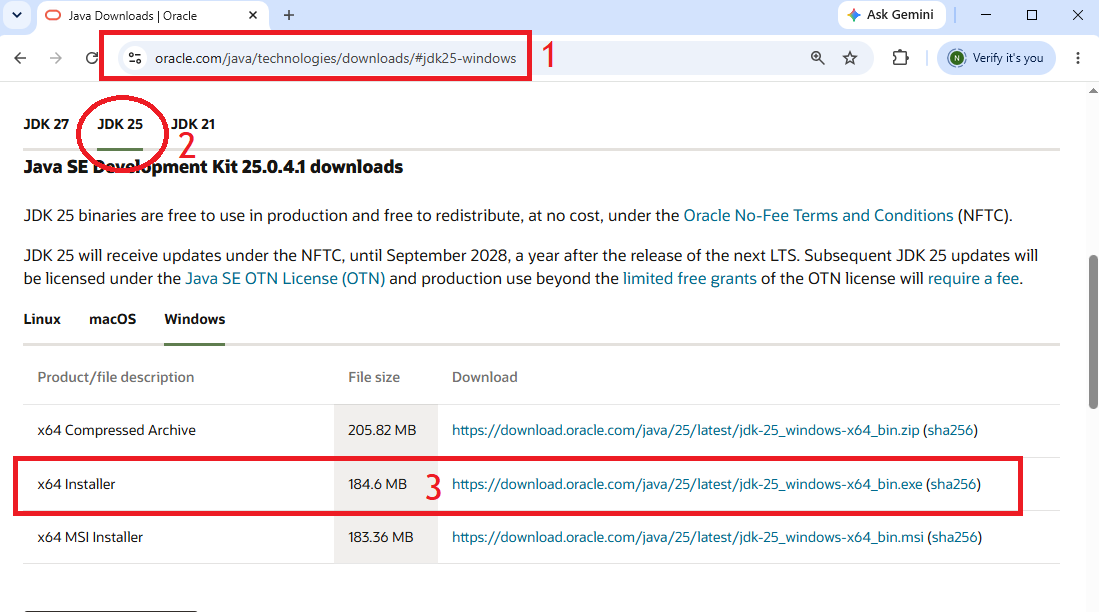
For Windows, Oracle provides JDK 25 in three formats:
- x64 Compressed Archive (.zip)
- x64 Installer (.exe)
- x64 MSI Installer (.msi)
For most Java developers, I recommend downloading the x64 Installer, because the EXE installer makes the Java Development Kit installation on Windows simple and straightforward.
Click the download link next to x64 Installer.
The downloaded file should have a name similar to: jdk-25_windows-x64_bin.exe
For an update release, the actual file name may contain the complete version number of JDK 25.
Oracle currently provides JDK 25 downloads for Windows as ZIP, EXE and MSI packages.
Verify the JDK Download
Before running the installer, it is a good practice to verify the integrity of your Java Development Kit download using its SHA-256 checksum.
On Oracle's download page, click the sha256 link corresponding to the Windows x64 Installer to see the checksum published by Oracle.
Then open Command Prompt (press Windows key + R, type cmd and hit Enter) and change the current directory to the location where the JDK installer was downloaded:
cd Downloads
Run the following command:
certutil -hashfile jdk-25_windows-x64_bin.exe SHA256
If you downloaded an update release with a different filename, replace the filename in the command accordingly.
For example:
certutil -hashfile jdk-25.0.x_windows-x64_bin.exe SHA256
Compare the checksum printed by the command with the SHA-256 value published on Oracle's website.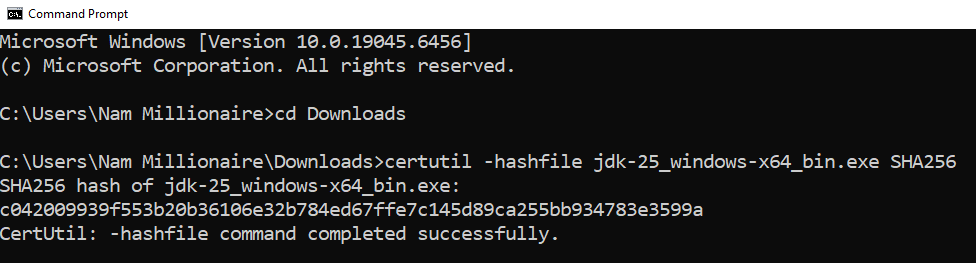
If they are identical, the downloaded installer has not been corrupted or modified, and you can safely proceed with the installation.
2. Install Java Development Kit 25 on Windows
Now double-click the downloaded EXE file to start the Oracle JDK 25 setup program. Click Install anyway if you get this warning from Windows:
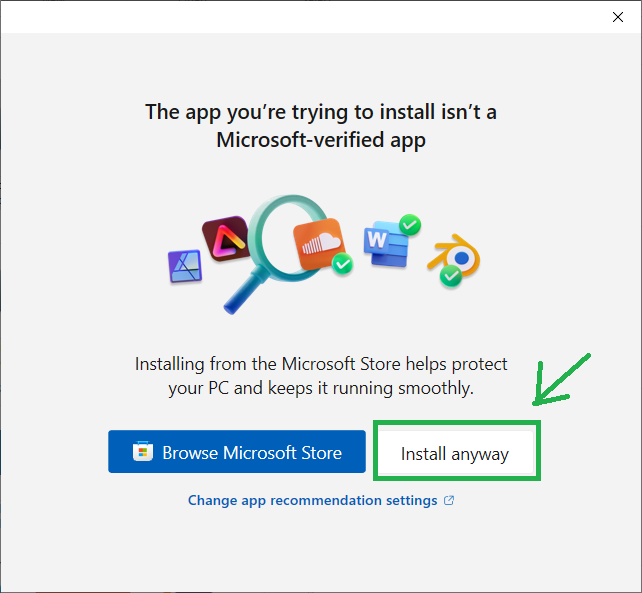
You may see the Windows User Account Control dialog asking whether you want to allow the installer to make changes to your computer. Click Yes.
Then the Oracle Java Development Kit 25 setup wizard appears:
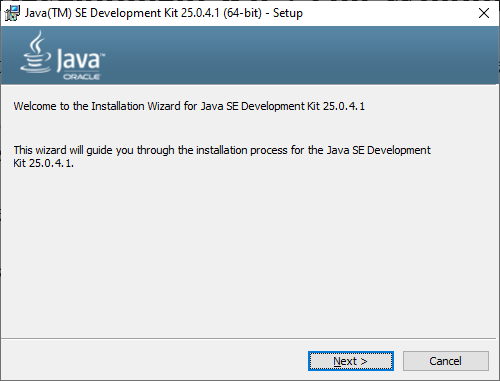
Click Next.
The setup program then allows you to specify the installation directory. Unless you have a particular reason to change it, I recommend keeping the default location.
For the initial JDK 25 release, the default directory is: C:\Program Files\Java\jdk-25
For JDK update releases, the directory may include the full version number, for example: C:\Program Files\Java\jdk-25.0.4
Oracle documents C:\Program Files\Java\jdk-<FEATURE> as the default JDK installation location on Windows.
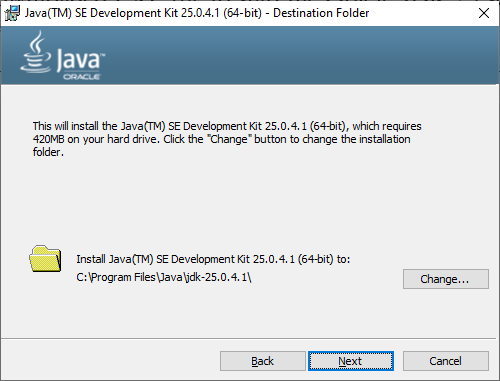
Click Next to start the installation.
The installer copies the Java Development Kit files to your computer and configures the Java commands required to use the JDK.
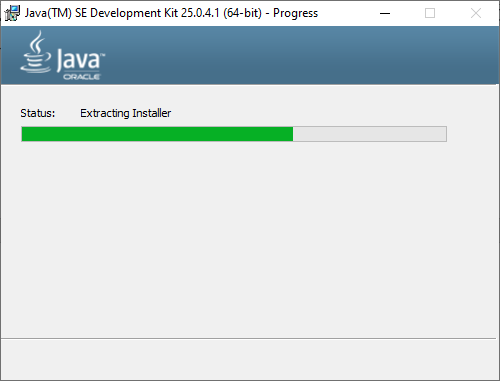
After a few moments, you should see the installation-complete screen.
Click Close to exit the setup program.
Oracle JDK installation also installs command entries such as java.exe, javac.exe and jar.exe under Oracle's Java path so they can be invoked from Windows.
3. Verify Java JDK 25 Installation
Next, let's make sure the Java Development Kit has been installed correctly.
Open a new Command Prompt window.
This is important because a Command Prompt window that was already open before the installation may not see environment changes made by the installer.
Type the following command: java -version
You should see output indicating that Java 25 is installed, similar to:
java version "25..."
The java command starts the Java Virtual Machine, or JVM, which is used to run Java applications.
Then check the Java compiler: javac -version
The output should look similar to:
javac 25...
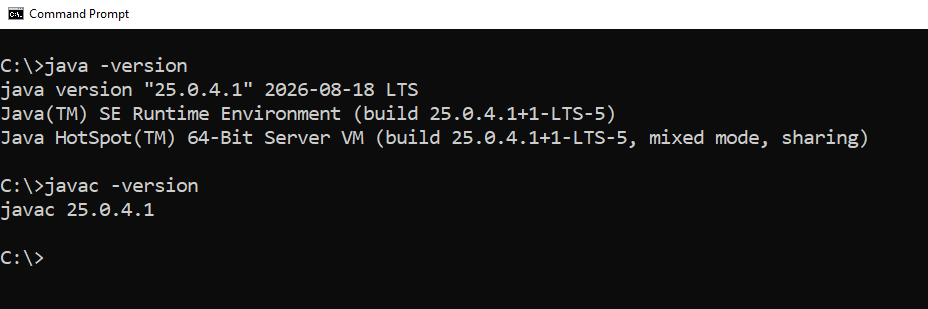 The javac command is the Java compiler included in the Java Development Kit. If both java and javac report version 25, congratulations - Oracle JDK 25 has been installed successfully on your Windows computer.
You can now compile and run Java programs as well as use Java development tools and IDEs such as Eclipse, IntelliJ IDEA or Apache NetBeans.
4. Check Where Java JDK Is Installed
You can also check which Java executable Windows is currently using.
Run: where java
And: where javac
You may see entries similar to:
C:\Program Files\Common Files\Oracle\Java\javapath\java.exe
and:
C:\Program Files\Common Files\Oracle\Java\javapath\javac.exe
Oracle JDK's Windows installer places Java command files under the Oracle Java path, allowing the commands to be executed without typing the complete path to the JDK's bin directory.
You can also directly check the JDK installation directory: C:\Program Files\Java
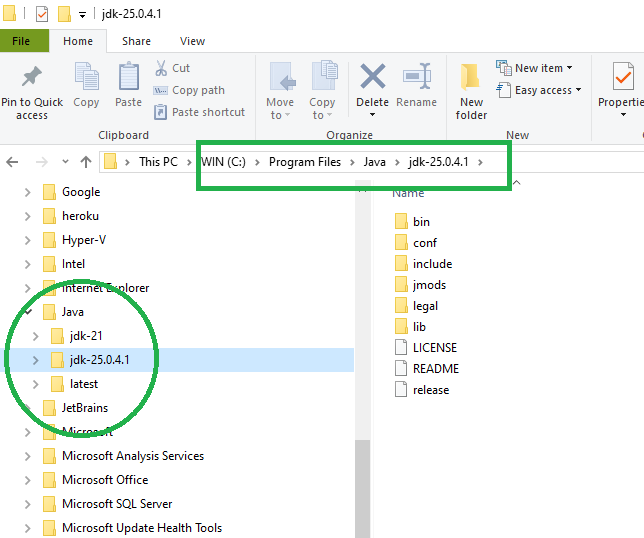
You should see the folder containing the installed JDK 25 version.
5. Do You Need to Set JAVA_HOME?
Installing JDK 25 is enough for running java and javac from Command Prompt if the Java path has been configured correctly.
However, many Java development tools such as Maven, Gradle, application servers and build scripts use the JAVA_HOME environment variable to locate the Java Development Kit.
Therefore, for a complete Java development environment, you may also want to set JAVA_HOME to the JDK installation directory, for example:
C:\Program Files\Java\jdk-25
or the directory of the JDK 25 update installed on your computer.
You can verify whether JAVA_HOME is already configured by running:
echo %JAVA_HOME%
If it is not configured, you can set the JAVA_HOME environment variable manually.
Link: How to set JAVA_HOME environment variable on Windows
Conclusion
That's how to download and install Java Development Kit 25 on Windows.
To summarize, the basic steps are simple: download the Windows x64 installer from Oracle's official Java download page, verify the downloaded file if desired, run the installer, and then use java -version and javac -version to confirm that JDK 25 is working correctly.
If you searched for Java Development Kit download, make sure that you download the JDK rather than only a Java runtime. The JDK contains development tools such as the Java compiler that programmers need for developing Java applications.
Oracle JDK 25 is a Long-Term Support version, so it is particularly suitable for developers and organizations that prefer to stay on an LTS Java release.
Watch the following video to see how to download and install Java Development Kit 25 on Windows step by step:
About the Author:
 Nam Ha Minh is certified Java programmer (SCJP and SCWCD). He began programming with Java back in the days of Java 1.4 and has been passionate about it ever since. You can connect with him on Facebook and watch his Java videos on YouTube.