How to change server location and deploy path for Tomcat in Eclipse
- Details
- Written by Nam Ha Minh
- Last Updated on 05 August 2019 | Print Email
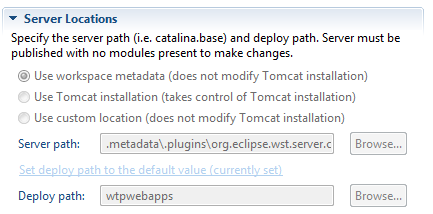 For example, if your workspace directory is E:\Java\JavaEE, then you see that Eclipse deploys the application in the server location which is a directory looks something like this:
e:\Java\JavaEE\.metadata\.plugins\org.eclipse.wst.server.core\tmp1\wtpwebapps
What if you want to deploy your Java web applications in another directory: Tomcat installation directory or your own directory? But you see all the options for Server Locations are grayed out, right? So how to make change?Here you will see how.Read the instruction carefully:Server must be published with no modules present to make changes.
This sounds logical because you can’t change server location and deploy path if there are still applications deployed on the default path. That means if you want to change server location you have to delete all the currently deployed applications on the server. To remove a deployed application from the server, simple select it in the server view and press Delete key. The server must be empty like this: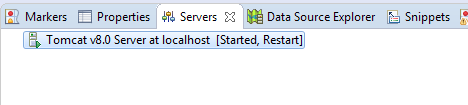 And when there’s no more application, you see all the options for Server Locations are enabled:
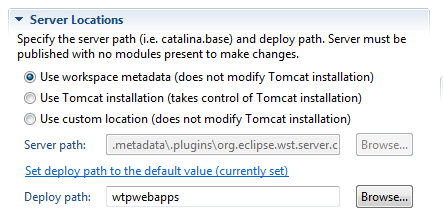 Now, you can change the server location and deploy path as you wish. For example, to make Eclipse deploy your Java web applications in webapps directory of Tomcat, make the following changes:
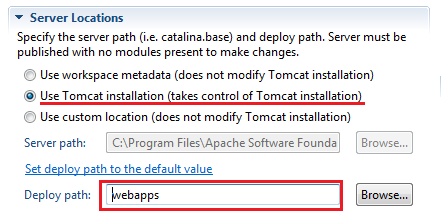 Then click Save (Ctrl + S) to make the changes take effect. Now drag and drop the project from the Project Explorer view to Servers view to deploy it to a new location.Similarly, you can specify your own location for server location and deploy path, for example:
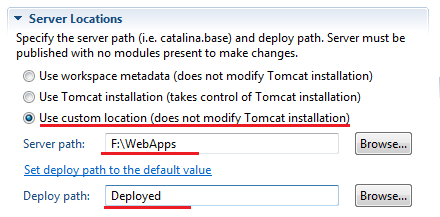 With this change, the server configuration is copied to the F:\WebApps directory and the applications are deployed in the F:\WebApps\Deployed directory. And note that in this case, the server path must not be the workspace directory.
 Other Tomcat Tutorials:
- How to deploy a Java web application on Tomcat
- How to Embed Tomcat Server into Java Web Applications
- How to Use Virtual Hosts in Tomcat
- How to set web application context path as server root in Tomcat
- How to configure JNDI DataSource for Database Connection Pooling in Tomcat
- How to configure session timeout in Tomcat
- How to change Tomcat port number
- How to add Tomcat server in Eclipse
About the Author:
 Nam Ha Minh is certified Java programmer (SCJP and SCWCD). He began programming with Java back in the days of Java 1.4 and has been passionate about it ever since. You can connect with him on Facebook and watch his Java videos on YouTube.