How to create, build and run a Java Hello World program with Eclipse
- Details
- Written by Nam Ha Minh
- Last Updated on 11 March 2020 | Print Email
1. Download and Install Eclipse IDE
Eclipse is the most popular Integrated Development Environment (IDE) for developing Java applications. It is robust, feature-rich, easy-to-use and powerful IDE which is the #1 choice of almost Java programmers in the world. And it is totally FREE.As of now (fall 2016), the latest release of Eclipse is Neon (version 4.6). Click the following link to download Eclipse:http://www.eclipse.org/downloads/eclipse-packages
You will see the download page like this: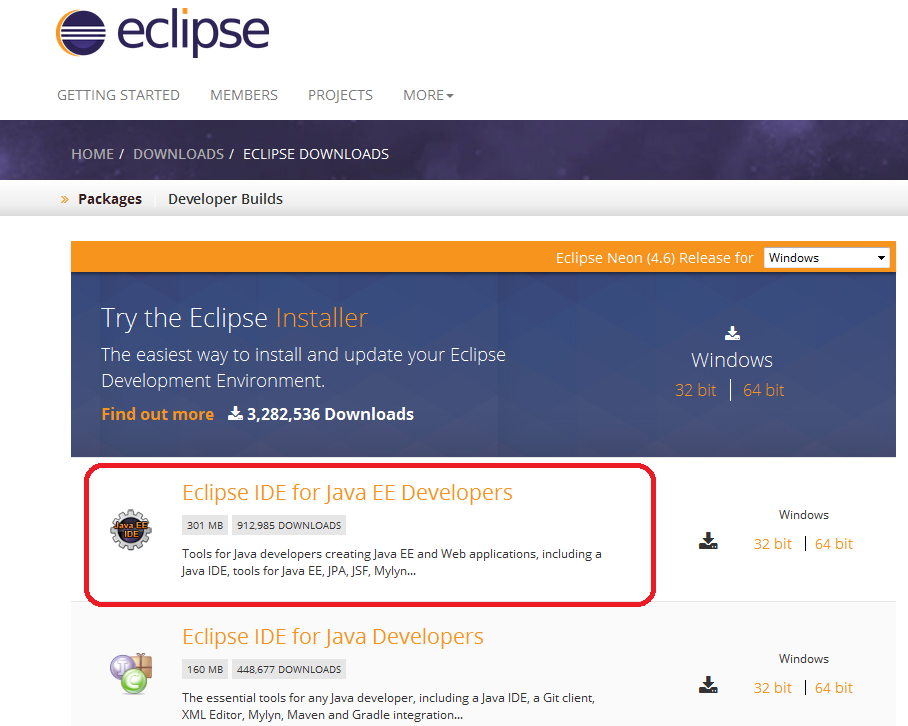 You can install Eclipse either by downloading the Eclipse Installer or package (zip file). I’d recommend you to download by package. Eclipse comes with various packages for different development purposes. For Java, there are two main packages listed as you see above:
- Eclipse IDE for Java EE Developers: This is for developing Java EE applications (web applications using Servlets & JSP).
- Eclipse IDE for Java Developers: This is for developing Java SE applications, a subset of the Java EE Developer package.
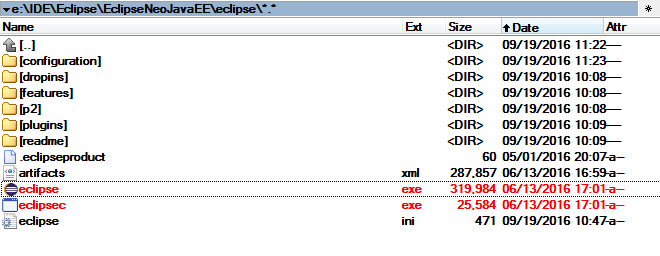 Eclipse Neon requires Java 8 or newer so make sure you have JDK 8 already installed on your computer. If not, follow this tutorial to install JDK.Click eclipse.exe file (Windows) to start the IDE. You will see the splash screen of Eclipse Neo:
 That’s it! You have successfully installed Eclipse IDE. Next, let’s see how to create a workspace.
 2. Choose a Workspace Directory
Eclipse organizes projects by workspaces. A workspace is a group of related projects and it is actually a directory on your computer. That’s why when you start Eclipse, it asks to choose a workspace location like this: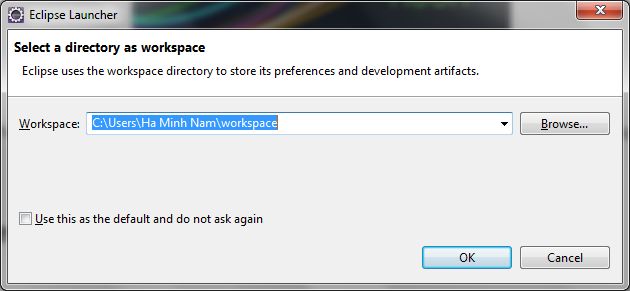 By default, Eclipse created a workspace directory at your USER_HOME\workspace. If you want to choose another directory, click Browse. Here I chose a different workspace:
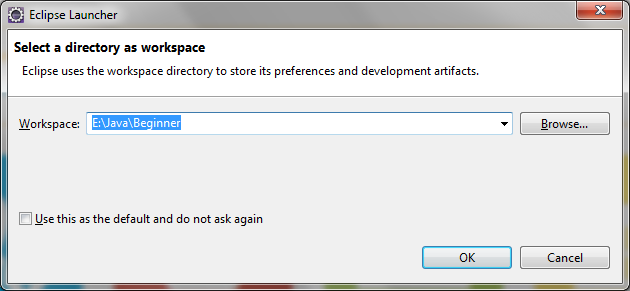 Check Use this as the default and do not ask again if you don’t want to be asked whenever you start Eclipse. You can always change workspace when Eclipse is running.Click OK. You should see the welcome screen:
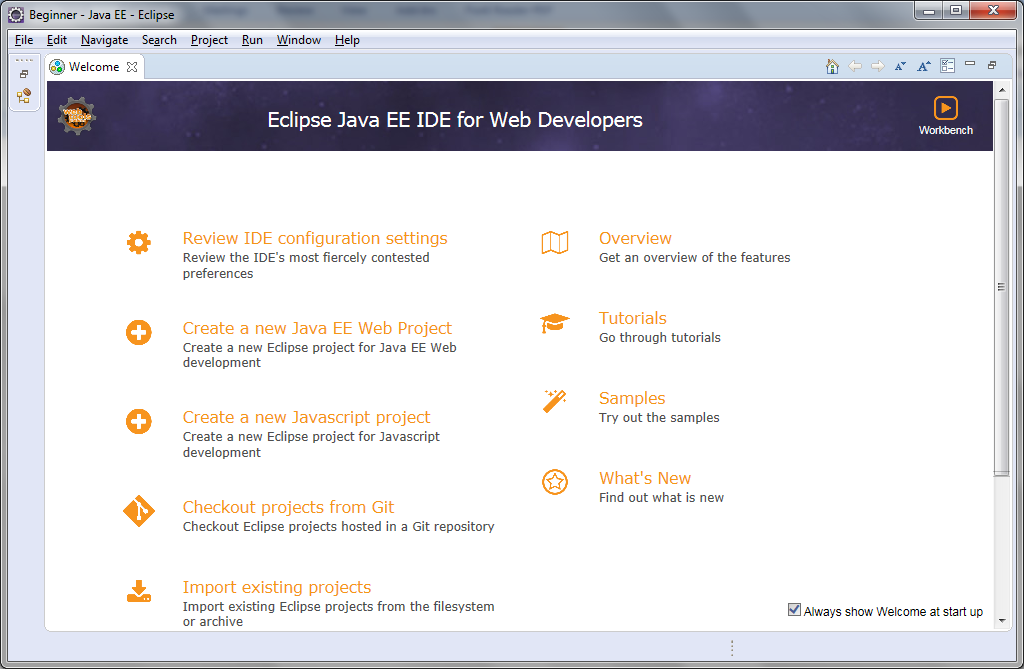 Now, we are ready to create a Java project.
 3. Change Perspective
Before creating a new Java project, let familiarize yourself with Perspective. Imagine a perspective is a predefined configuration specialized for a specific aspect of development process such as Java, Java EE, Debug, Database Development, Web, etc. Depending on your need, you can switch back and forth among different perspectives during a development session.Since we installed Eclipse IDE for Java EE Developers, the default perspective is Java EE. To change perspective, go to Window > Perspective > Open Perspective > Other… You will see a small dialog listing all available perspectives: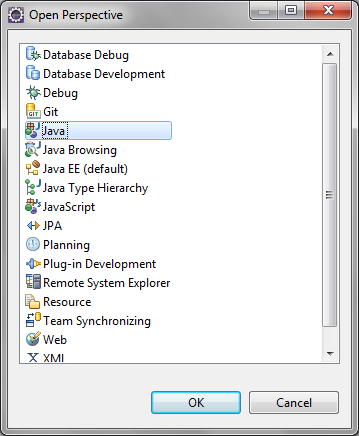 Here we choose Java perspective. Click OK. Here’s how the Java perspective would look like: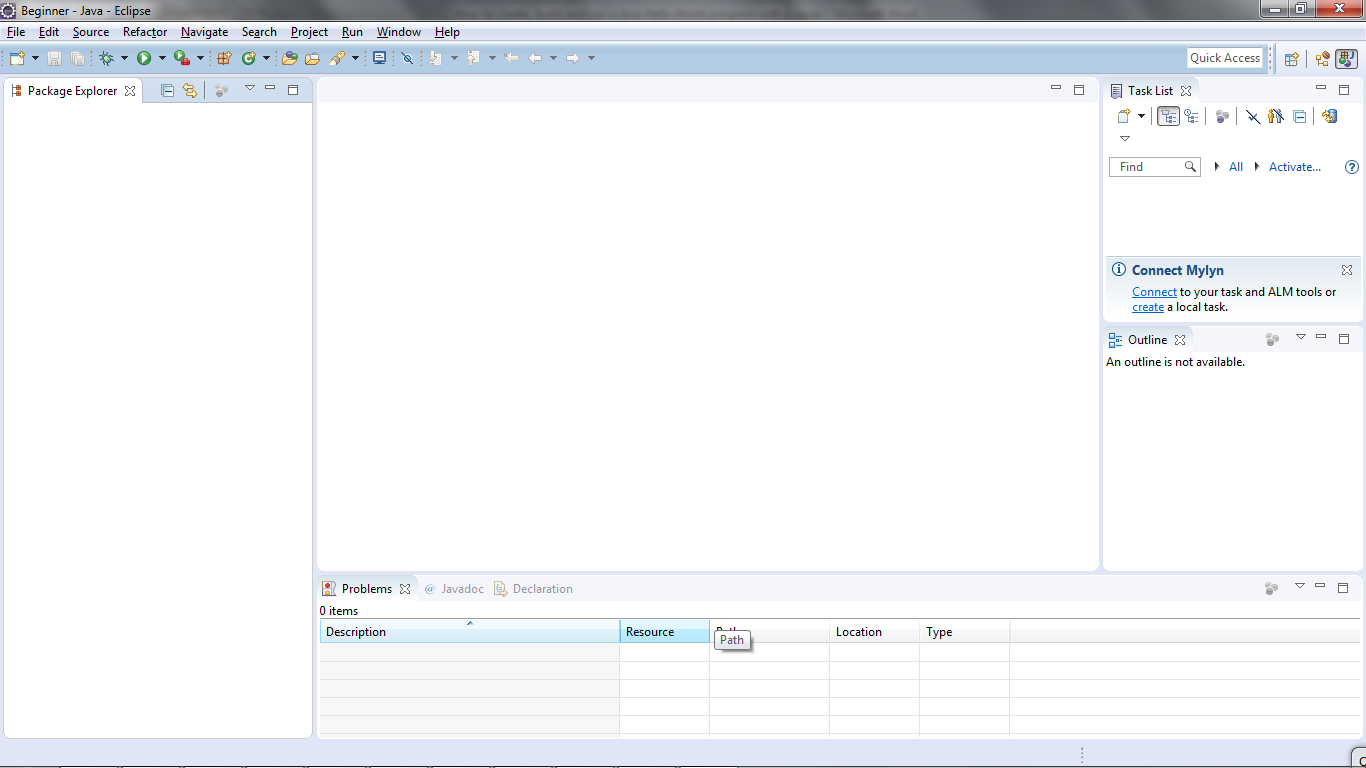
4. Create a Java Project
To create a new Java project in Eclipse, go to File > New > Java Project. The New Java Project wizard dialog appears let you specify configurations for the project: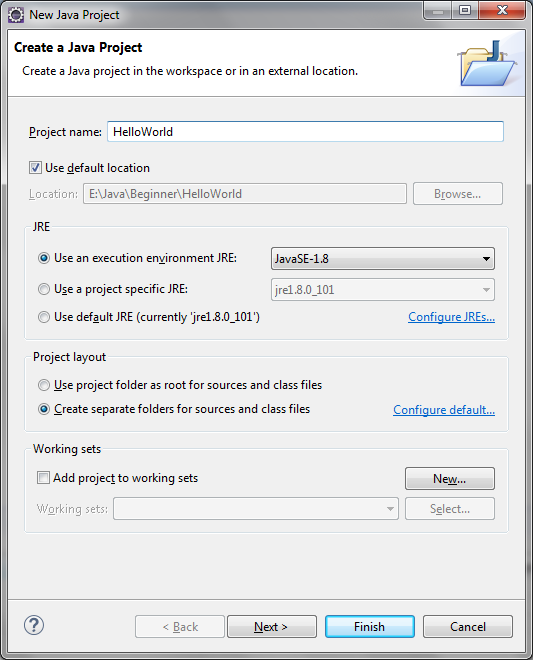 Enter project name: HelloWorld. Leave the rest as it is, and click Finish.You should see the HelloWorld project is created in the Package Explorer view as following:
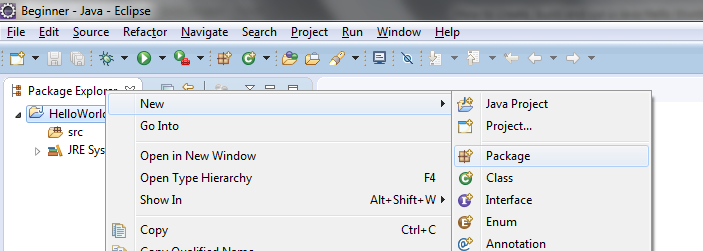
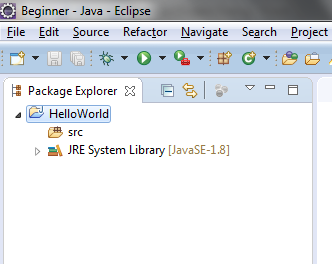 It’s recommended to create a package for your project. Right click on the project, and select New > Package from the context menu:
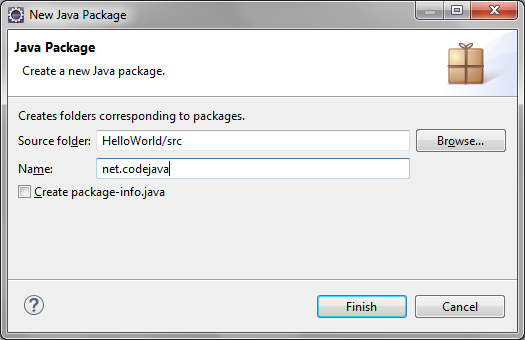
 In the New Java Package dialog, enter the name your package. Here I enter net.codejava:
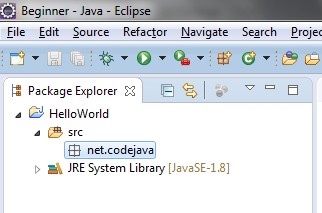
 Click Finish. You should see the newly created package appears:
 Now, it’s time to create a Java class for your hello world application.
 5. Write Your First Java Program
To create a new Java class under a specified package, right click on the package and select New > Class from the context menu: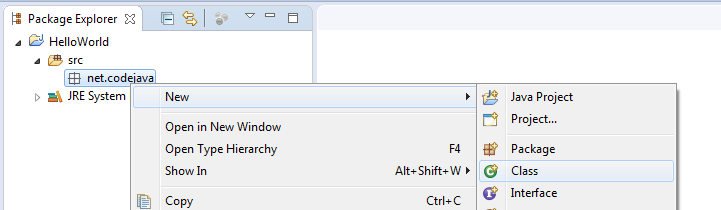 The New Java Class dialog appears, type the name of class as HelloWorld and choose the option to generate the main() method:
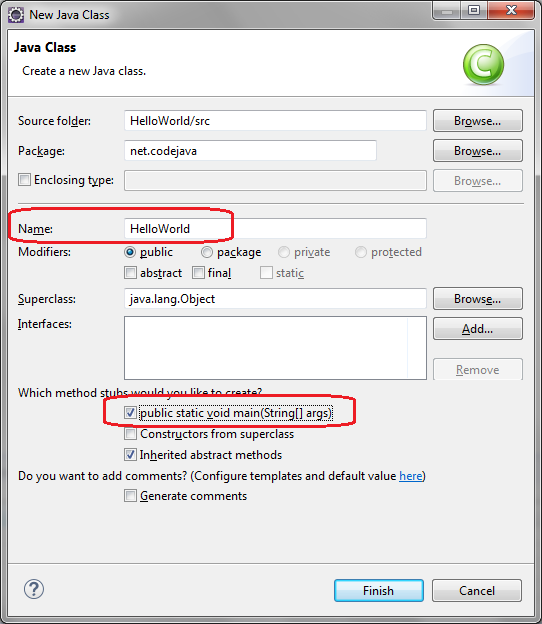 And click Finish. The HelloWorld class is generated like this:
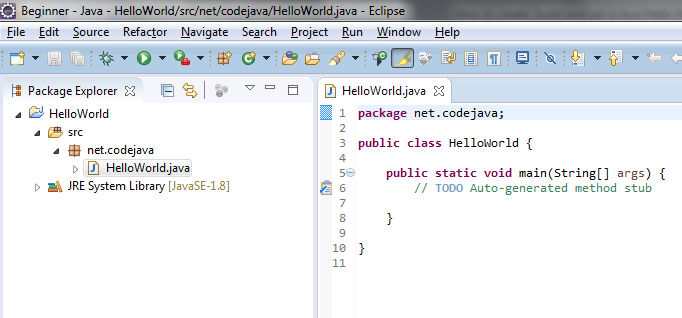 Now, type some code in the main() method to print the message “Hello World” to the console:
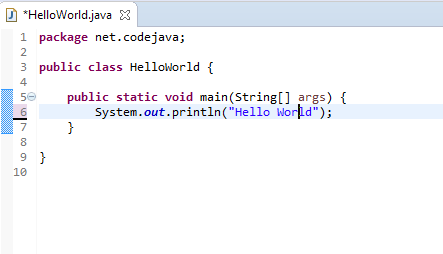 That’s it. We have created a Java hello world program using Eclipse IDE.
 6. Compile, Build and Run Your First Java Program
By default, Eclipse compiles the code automatically as you type. And it will report compile errors in the Problems view at the bottom like this: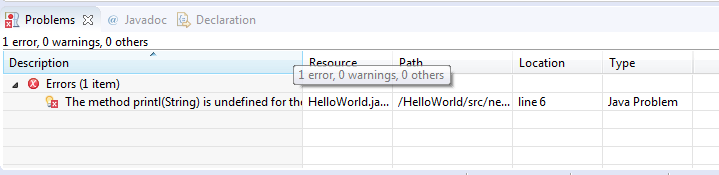 If you want to disable automatically build feature, click the menu Project and uncheck Build Automatically:
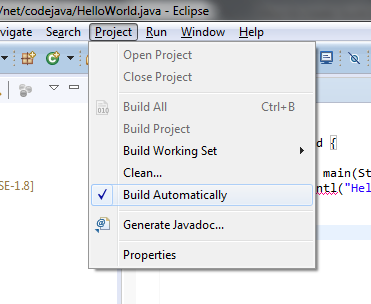 However, it’s strongly recommended to keep the auto build mode for it helps you detect errors instantly.Now, let’s run the hello world application. Click menu Run > Run (or press Ctrl + F11), Eclipse will execute the application and show the output in the Console view:
 That’s it! The HelloWorld program has run and printed the output “Hello World” and terminates.We hope this tutorial help you get started with Eclipse and Java easily. Thank you for reading.What's next? I recommend you to continue with this article: Java OOP: Understand Classes and Objects Watch this tutorial in video:
 Related Java Hello World Tutorials:
- How to write, compile and run a hello world Java program for beginners
- Java Hello World for Beginner with NetBeans IDE
Other Eclipse Tutorials:
- How to use Eclipse IDE for Java EE Developers
- How to generate Javadoc in Eclipse
- How to generate JAR file in Eclipse
- How to create WAR file for Java web application in Eclipse
- How to create Ant build file for existing Java project in Eclipse
- How to pass arguments when running a Java program in Eclipse
- How to create Java web project with Maven in Eclipse
- 25 Eclipse Shortcut Keys for Code Editing
- How to Add Copyright License Header for Java Source Files in Eclipse
About the Author:
 Nam Ha Minh is certified Java programmer (SCJP and SCWCD). He began programming with Java back in the days of Java 1.4 and has been passionate about it ever since. You can connect with him on Facebook and watch his Java videos on YouTube.