How to Download and Install OpenJDK 17
- Details
- Written by Nam Ha Minh
- Last Updated on 09 October 2021 | Print Email
1. Download binary distribution of OpenJDK 17
Head over to the official download page of OpenJDK at https://jdk.java.net/17, and click on the link for Windows/x64: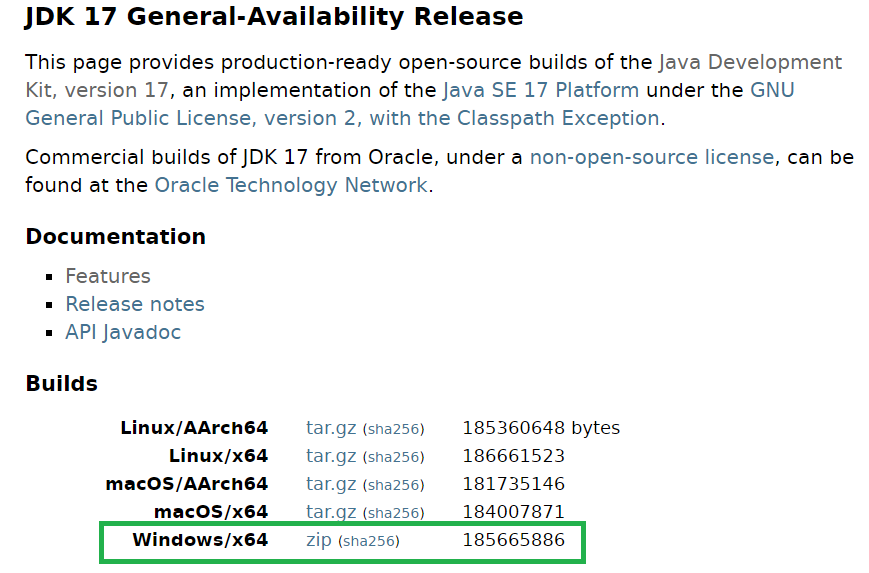 It will download the binary distribution of OpenJDK 17 as a ZIP archive file. Then you should type the following command to verify the SHA256 checksum of the downloaded file:
certutil –hash openjdk-17_windows-x64_bin.zip SHA256
Compare the SHA256 value produced by this command against the value posted on the website, in the corresponding sha256 link. If they are identical, it’s safe to use the downloaded zip file.2. Install OpenJDK 17 on Windows
Extract the zip file into a directory on your computer, e.g. D:\OpenJDK17. Then you need to update the JAVA_HOME environment variable, pointing to the installation directory of OpenJDK 17, e.g. D:\OpenJDK17\jdk-17. Also make sure that the PATH variable does include an entry to JAVA_HOME’s bin folder:setx –m JAVA_HOME “D:\OpenJDK17\jdk-17”
setx –m PATH “%JAVA_HOME%\bin;%PATH%”
Note that you must execute these commands with administrator right. Follow this article to learn more. If you see this screen, it means that OpenJDK 17 has been successfully installed.To see the steps in action, watch the following video:
 Learn more:
- How to check Java version
- Java SE versions history
- How to set environment variables for Java using command line
- How to write, compile and run a hello world Java program for beginners
- What are JVM, JRE and JDK
About the Author:
 Nam Ha Minh is certified Java programmer (SCJP and SCWCD). He began programming with Java back in the days of Java 1.4 and has been passionate about it ever since. You can connect with him on Facebook and watch his Java videos on YouTube.