Download and Install Oracle JDK 20 on macOS
- Details
- Written by Nam Ha Minh
- Last Updated on 04 May 2023 | Print Email
1. Download DMG installer for Oracle JDK 20
For macOS, Oracle JDK is distributed in compressed archive file (.tar.gz) and installer (.dmg), and I recommend you choose DMG installer as it’s more convenient (few clicks to install without any manual configuration).So head over to the Oracle JDK 20’s official download page, you’ll see the following page appears: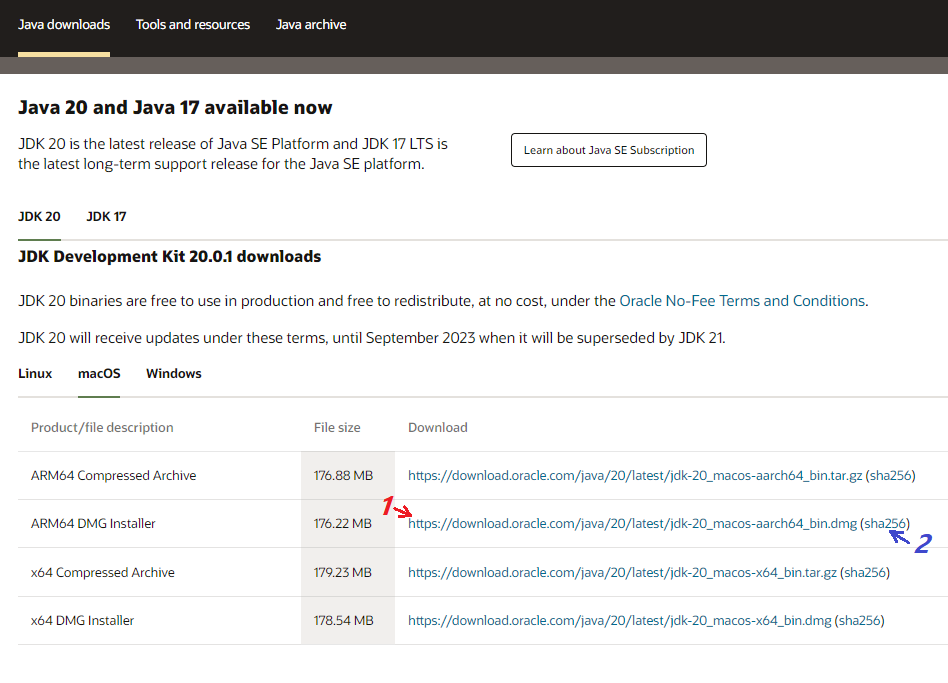 If your Mac computer running on Intel’s CPU, choose the download for x64 DMG Installer. Else choose ARM64 DMG Installer for Mac running on Apple’s CPU.In my case, I’m using iMac with Apple M1 chip, so I click the link 1 for downloading DMG installer for Oracle JDK 20. It will download the jdk-20_macos-aarch64_bin.dmg file.And it’s strongly recommended to check SHA256 checksum of the downloaded archive file to make sure it is safe to use (not tampered with). Open a new Terminal window. Change the current directory to location of the downloaded file, then type the following command:
shasum -a 256 jdk-20_macos-aarch64_bin.dmg
2. Install Oracle JDK 20 on macOS
To install Oracle JDK 20 on macOS, double click the downloaded .dmg file. Then double click the extracted package JDK 20.0.1.pkg to run the installer. It will be something as below: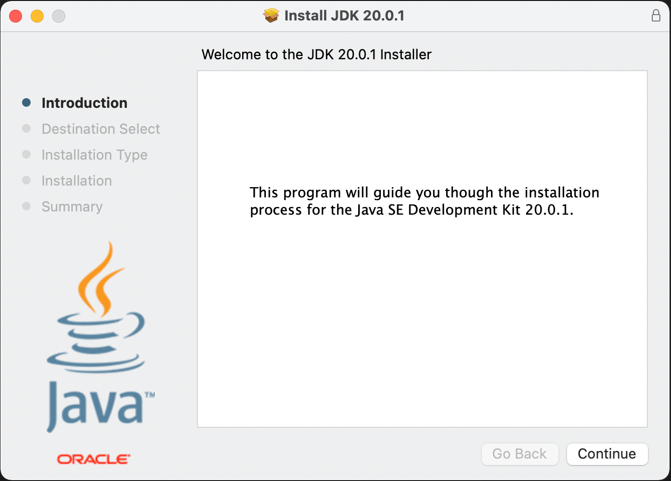 Click Continue and Install to start the installation. It should take just a few seconds. Then click Close to quit the installer. When you’re asked to move the installer to trash, let agree.Oracle JDK 20 will be installed in the /Library/Java/JavaVirtualMachines/jdk-20.0.1.jdk directory. And it also puts java and javac programs under /usr/bin directory which is included in the PATH environment variable by default. So you don’t have to manually set JAVA_HOME.Finally, type java -version and javac -version in the terminal to verify. You should see the following output:
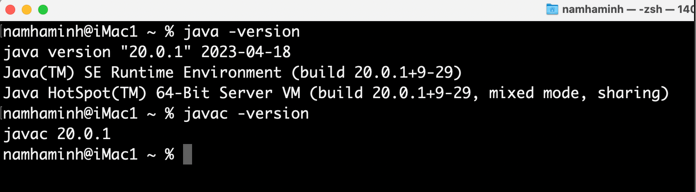 That means you have successfully installed Oracle JDK 20 on Mac computer. You can now begin running and developing Java applications on macOS operating system. You can also watch the following video to see the steps in action:
 Related Articles:
- How to set JAVA_HOME in macOS and Linux permanently
- How to set JAVA_HOME environment variable on Windows 10
- What are JVM, JRE and JDK
- How to write, compile and run a hello world Java program for beginners
- Java Core Language Tutorials
About the Author:
 Nam Ha Minh is certified Java programmer (SCJP and SCWCD). He began programming with Java back in the days of Java 1.4 and has been passionate about it ever since. You can connect with him on Facebook and watch his Java videos on YouTube.